
 Desktop
 Online

 Free Download
 Online
 Desktop
Vidmud AI Photo Enhancer for Windows
-
 Upscale images to stunning 4K and 8K resolution.
-
Remove blur, reduce noise, and sharpen details easily.
-
Advanced models for realistic image restoration and repair.
-
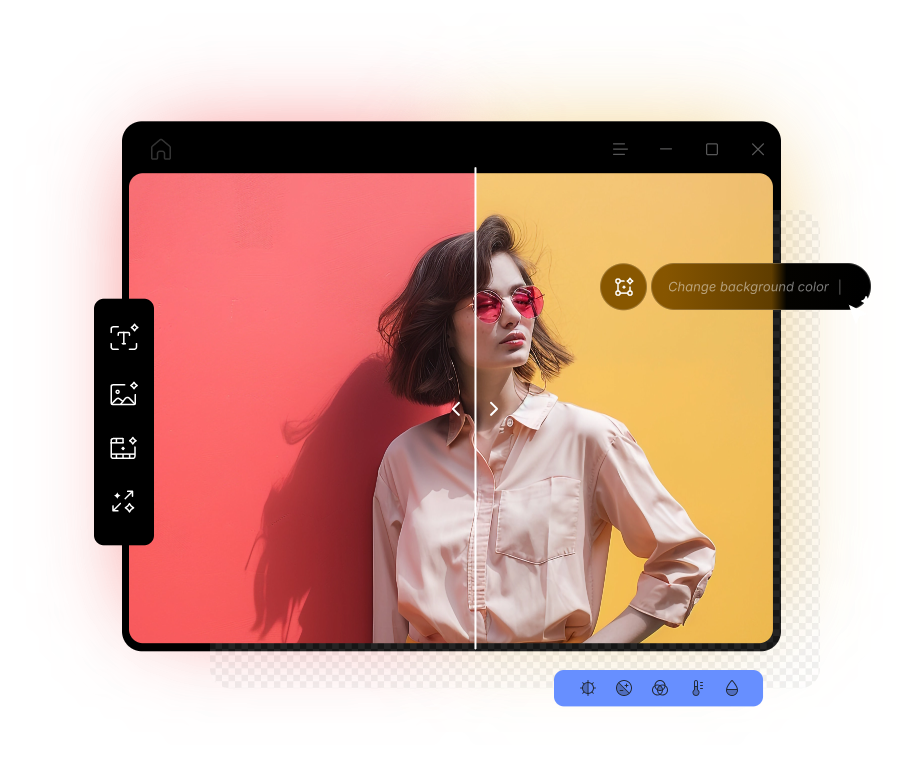
Smart AI photo editing tools for flexible customization.
-
Secure, fast, and seamless AI enhancement experience.
 Free Download
What Makes Vidmud AI Photo Enhancer
for PC Stand Out
AI-Driven Enhancement
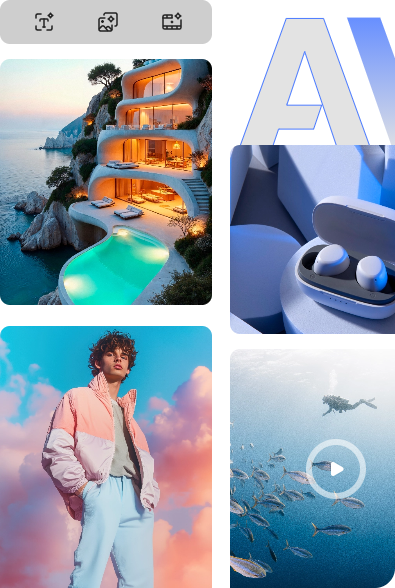
Vidmud uses advanced AI models to deliver professional-grade photo enhancement.
Batch Processing
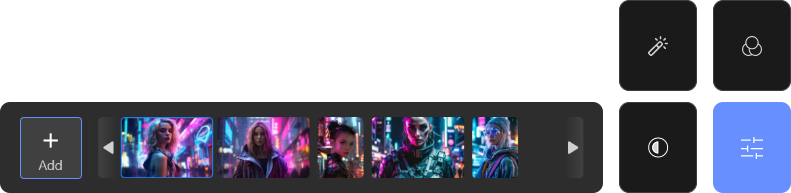
The software handles multiple files simultaneously, saving you time and effort.
High Safety and Privacy
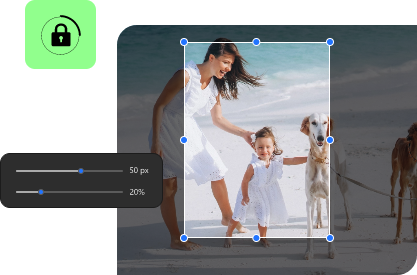
Private creative workspace for you to enhance, edit, and generate with assurance. No user data stored.

Easy for All Levels
Easy photo enhancer free software for everyone. Simplify everything from simple touch-ups to complex tweaks.
Free Download
Upscale Images Up to 8x Higher with the AI Photo Enhancer
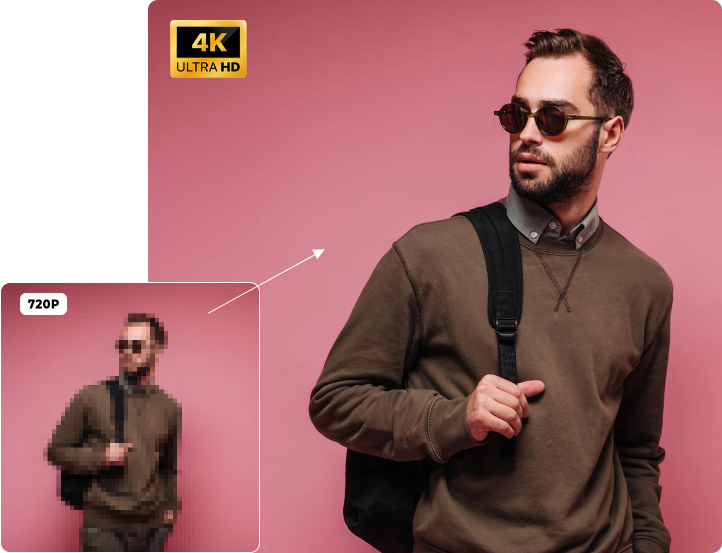
Need higher image resolution for larger displays or greater editing flexibility? Use the AI photo enhancement software for Windows to upscale images and see an instant result. Instead of simple stretching, Vidmud carefully enhances and enlarges your photos with enough details and natural textures preserved. For a quick transformation from low resolution to stunning Ultra HD, you can achieve the heavy lifting with minimal effort.
Free Download
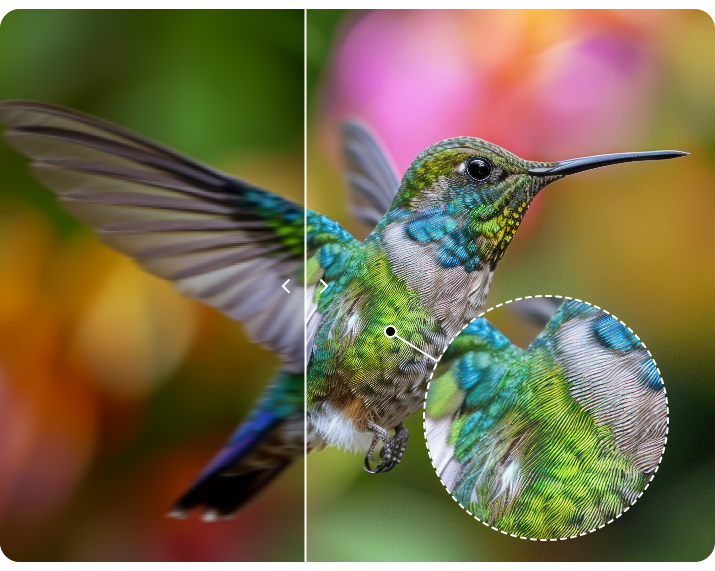
Improve Clarity Pixel by Pixel by AI Image Sharpening
Bring stunning sharpness and clarity to your photos and visual assets effortlessly. Vidmud AI Photo Enhancer for PC automates image sharpening with precise improvements to edges, contrast, colors, textures, and focus. Transform ordinary visuals into vibrant, realistic content that looks naturally captured in high quality. With the polished, detail-rich images, you can elevate any creative project to a more professional level.
Free Download
No Blur. No Noise.
Vidmud PC Wipes Away Any Flaws with Ease
Turn your desktop into a powerful AI enhancement studio to tackle any image distraction with speed and precision. All you need is the AI image enhancement software

Unblur
Correct blurry photos affected by camera movement, fast motion, poor lighting, and digital quality loss.
Free Download

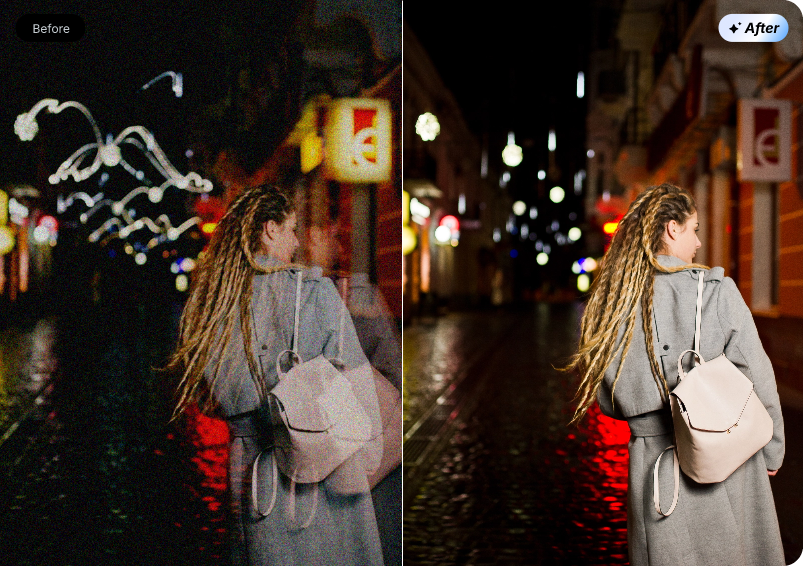
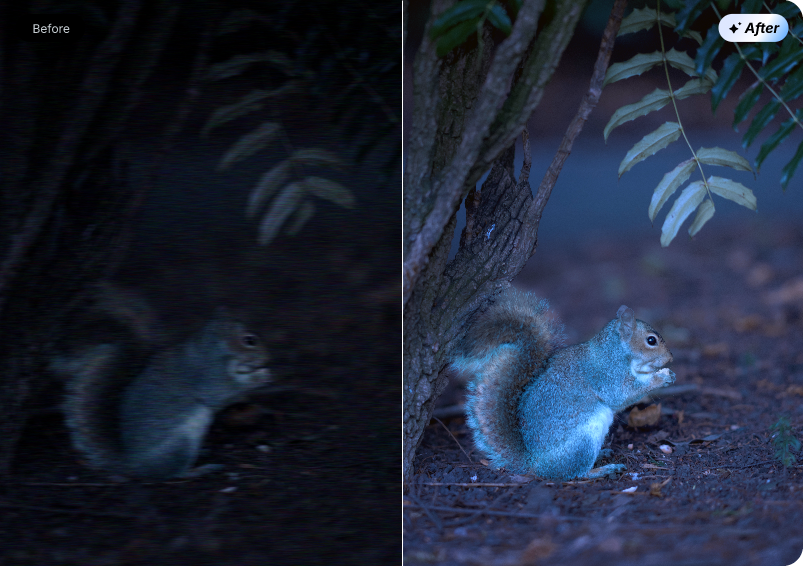
Denoise
Remove noise and grain from nighty scenes, old moments, wildlife photos, etc.
Free Download

Color Correction
Fine-tune exposure, lighting, shadows, and saturation to achieve balanced, realistic visuals.
Free Download
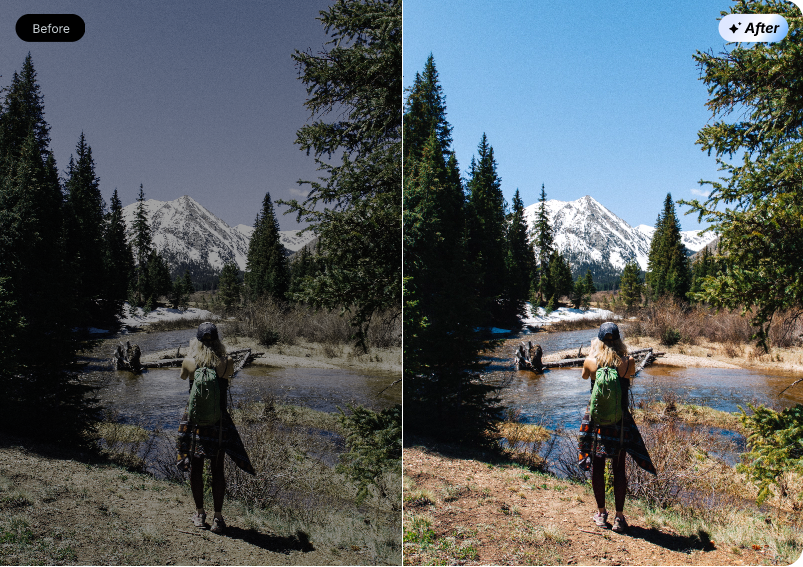 Unblur
Denoise
Color Correction
Unblur
Denoise
Color Correction
Correct blurry photos affected by camera movement, fast motion, poor lighting, and digital quality loss.
Remove noise and grain from nighty scenes, old moments, wildlife photos, etc.
Fine-tune exposure, lighting, shadows, and saturation to achieve balanced, realistic visuals.
Turn Any Portrait into Perfection with the AI Photo Enhancer Software
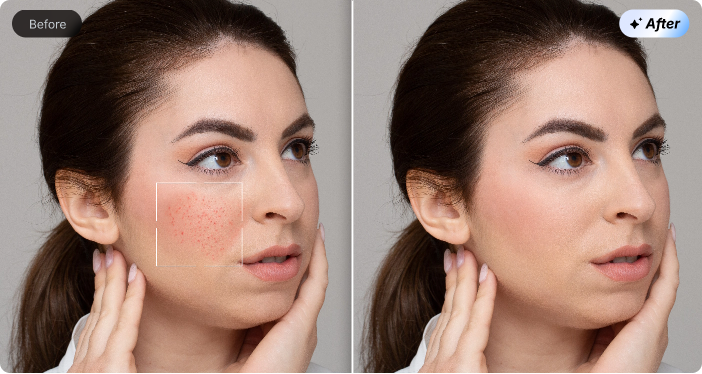
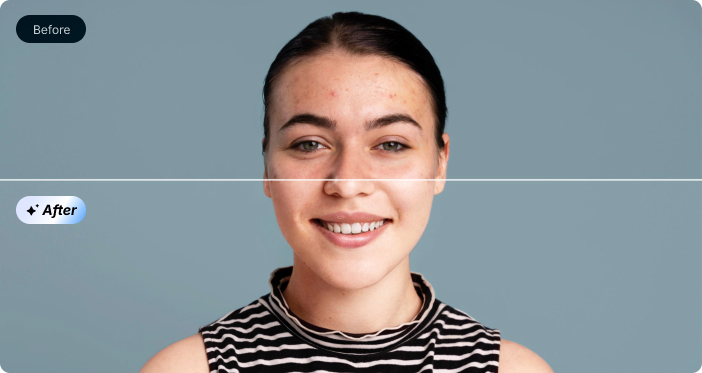
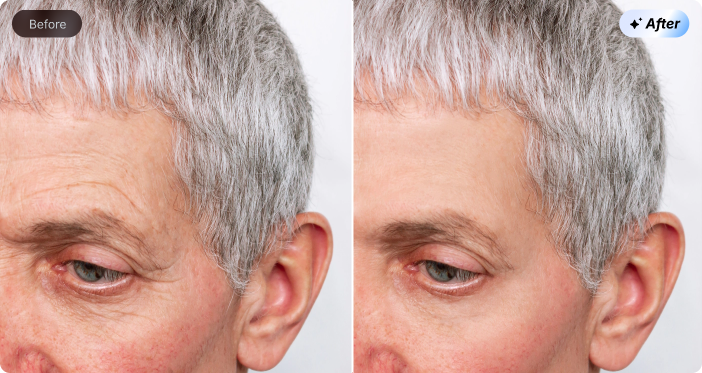
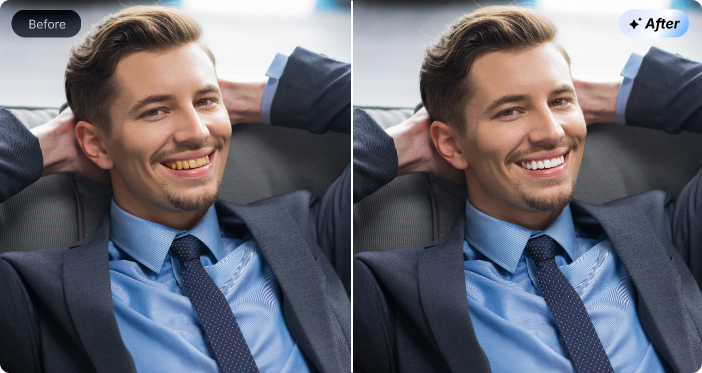
Refine facial details and showcase your best look effortlessly with the dedicated portrait enhancement engine from Vidmud AI Photo Enhancer for Windows. Enjoy 100% offline processing with complete privacy. No cloud uploads, no personal data exposure, and zero compromise on security.
Free Download
Desktop Vs Online:
The Growing Move Toward Photo Enhancement Software


Vidmud AI Photo Enhancer for PC
 Your files never leave your PC — 100% private & safe.
Available anytime, anywhere, without connection limit.
Get unlimited usage with a cost-effective one-time purchase.
Robust processing performance and immediate results.
Advanced AI for precise enhancement and more editing demands.
Your files never leave your PC — 100% private & safe.
Available anytime, anywhere, without connection limit.
Get unlimited usage with a cost-effective one-time purchase.
Robust processing performance and immediate results.
Advanced AI for precise enhancement and more editing demands.
General Online Enhancer
Security
 Cloud uploads on untrusted sites may put personal data at risk.
Accessibility
Heavily rely on a stable internet connection.
Pricing
Download-by-credit systems tend to get expensive fast.
Speed
Vary based on network performance and server load.
Functionality
Compression on cloud models can reduce enhancement capabilities.
Cloud uploads on untrusted sites may put personal data at risk.
Accessibility
Heavily rely on a stable internet connection.
Pricing
Download-by-credit systems tend to get expensive fast.
Speed
Vary based on network performance and server load.
Functionality
Compression on cloud models can reduce enhancement capabilities.
Get the Photo Editing App for PC Free Download


Installation Complete!

Your Desktop AI Photo Enhancer Is Ready.
Check out the Pro Tips to Use Vidmud AI Photo Enhancer for PC Free Smartly

Batch Enhance Instantly
Enhance multiple images together to save time. Vidmud can handle 6 inputs at the same time.

Keep Natural, No Overdoing
Avoid heavy upscaling and over-shar-pening. 2× or 4× usually delivers the most realistic results in most cases.
Activate GPU Acceleration
Set Vidmud to high-performance GPU mode under Windows Settings for smoother AI rendering when needed.

Use Keyboard Shortcuts
Use keyboard shortcuts for great efficiency in Vidmud, such as F5 for enhancement and M for model switching. See more in Settings.
Installation Complete!
Your Desktop AI Photo Enhancer Is Ready.
Check out the Pro Tips to Use Vidmud AI Photo Enhancer for PC Free Smartly
Batch Enhance Instantly
Enhance multiple images together to save time. Vidmud can handle 6 inputs at the same time.
Keep Natural, No Overdoing
Avoid heavy upscaling and over-shar-pening. 2× or 4× usually delivers the most realistic results in most cases.
Activate GPU Acceleration
Set Vidmud to high-performance GPU mode under Windows Settings for smoother AI rendering when needed.
Use Keyboard Shortcuts
Use keyboard shortcuts for great efficiency in Vidmud, such as F5 for enhancement and M for model switching. See more in Settings.
How to Use the Vidmud AI Image Enhancer Software
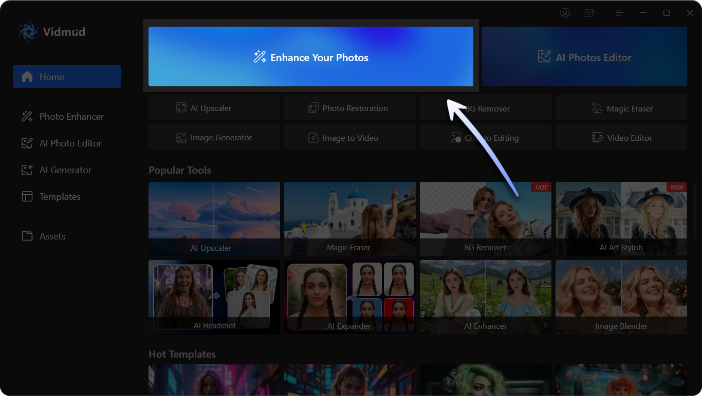
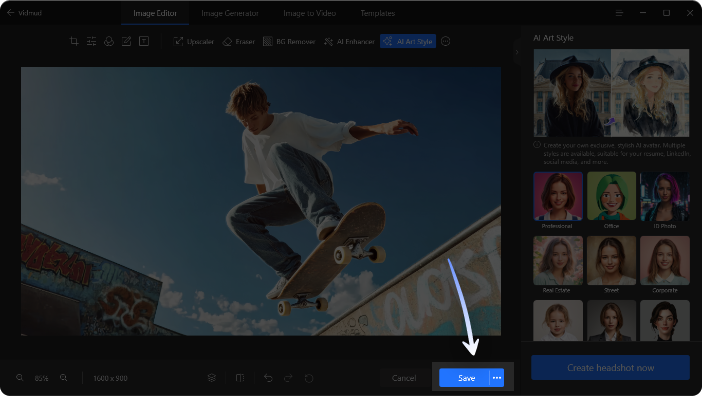

Step 1. Import Your Photo
Click Enhance Your Photos on the home screen, then choose the photo you want to enhance from your computer.

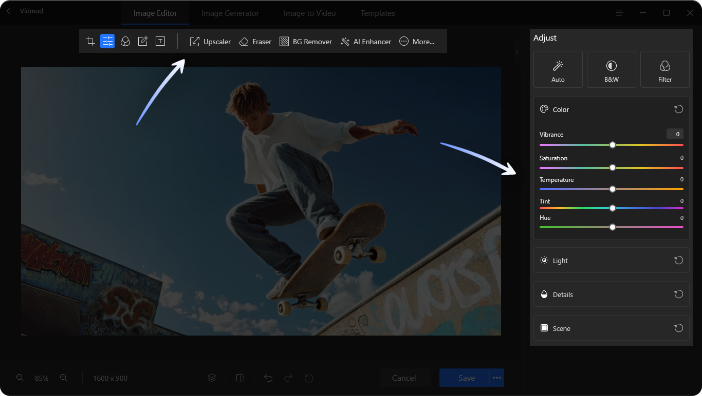
Step 2. Enhance and Personalize
Tailor your settings in the AI enhancement workspace, then click Enhance Now to elevate your image at once. Want to customize further? Use the editing toolbar to swap the background, erase objects, extend the frame, crop, and do more.

Step 3. Export the Enhanced Photo
Preview the final result. Once satisfied, click Save to export the enhanced photo and store it on your computer.
Free Download
Step 1. Import Your Photo
Click Enhance Your Photos on the home screen, then choose the photo you want to enhance from your computer.
Step 2. Enhance and Personalize
Tailor your settings in the AI enhancement workspace, then click Enhance Now to elevate your image at once. Want to customize further? Use the editing toolbar to swap the background, erase objects, extend the frame, crop, and do more.
Step 3. Export the Enhanced Photo
Preview the final result. Once satisfied, click Save to export the enhanced photo and store it on your computer.
Simplify AI Photo Enhancement Tasks
One Program, Easy Clicks.
Experience editing without limits. Vidmud for PC delivers an all-in-one AI toolkit that takes your creative projects far beyond enhancement.
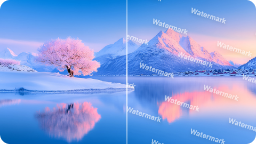
Erase Distraction
Brush away unwanted objects, watermarks, text, logos, or even people with ease.
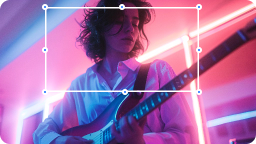
Resize Images
Crop photos to custom dimensions, convert horizontal images to vertical, and vice versa.

Change Background
Replace photo backgrounds instantly with a single click.
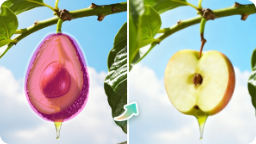
Replace Object
Change any element in a photo into anything you desire.
Apply Filter
Explore a wide collection of trendy AI photo filters and visual effects.

Erase Distraction
Brush away unwanted objects, watermarks, text, logos, or even people with ease.
Resize Images
Crop photos to custom dimensions, convert horizontal images to vertical, and vice versa.
Change Background
Replace photo backgrounds instantly with a single click.
Replace Object
Change any element in a photo into anything you desire.
Apply Filter
Explore a wide collection of trendy AI photo filters and visual effects.
Best Free AI Photo Enhancer for Windows, Built for Diverse Projects
Free Download

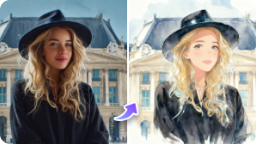
Family Memories
Bring precious family moments back to life with Vidmud Photo Enhancer. Repair scratched, faded, and damaged old portraits, reviving lost details and vivid tones. Safeguard your heartfelt memories and keep every treasured moment crisp and timeless forever.
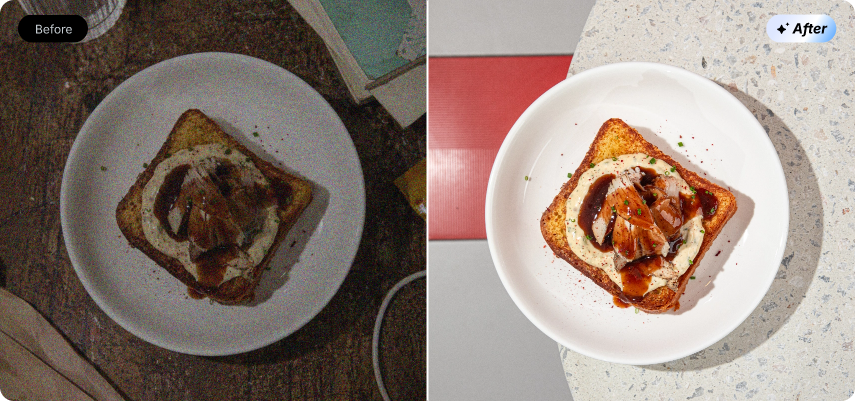
Social Media
Elevate your social posts effortlessly with Vidmud AI photo enhancer. Tailor stunning visuals for TikTok, Instagram, X, and more mainstream platforms. Perfectly optimize portraits, travel snapshots, food shots, and pet photos to make your daily content stand out in any feed.
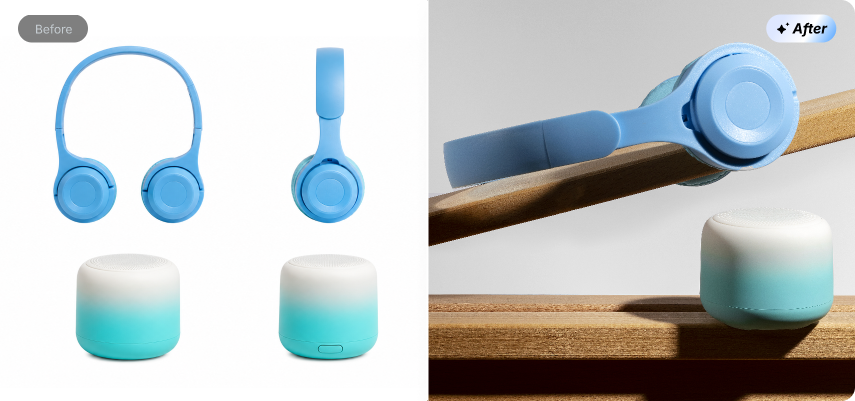
Marketing & E-commerce
Polish commercial photos, product displays, and brand visuals to perfectly match your brand identity. Upgrade raw shooting materials into professional-grade marketing assets. Easily strengthen your brand image and capture your target audience's attention.
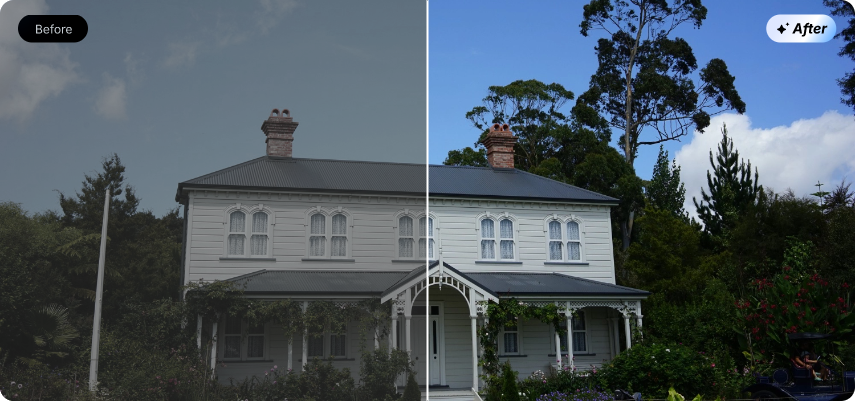
Real Estate
The Vidmud Windows photo enhancer also provides a cost-effective visual solution for real estate professionals. Enhance interior spaces, property exteriors, landscapes, and panoramic shots. Transform ordinary on-site photos into eye-catching, high-converting listings that stand out in a competitive market.

Graphic Design
For designers, Vidmud helps turn small, low-quality images into high-quality creative assets with ease. Streamline material revision workflows, enhance the detail, and polish final designs. Add professional touches to diverse creative needs more efficiently.
Family Memories
Bring precious family moments back to life with Vidmud Photo Enhancer. Repair scratched, faded, and damaged old portraits, reviving lost details and vivid tones. Safeguard your heartfelt memories and keep every treasured moment crisp and timeless forever.
Social Media
Elevate your social posts effortlessly with Vidmud AI photo enhancer. Tailor stunning visuals for TikTok, Instagram, X, and more mainstream platforms. Perfectly optimize portraits, travel snapshots, food shots, and pet photos to make your daily content stand out in any feed.
Marketing & E-commerce
Polish commercial photos, product displays, and brand visuals to perfectly match your brand identity. Upgrade raw shooting materials into professional-grade marketing assets. Easily strengthen your brand image and capture your target audience's attention.
Real Estate
The Vidmud Windows photo enhancer also provides a cost-effective visual solution for real estate professionals. Enhance interior spaces, property exteriors, landscapes, and panoramic shots. Transform ordinary on-site photos into eye-catching, high-converting listings that stand out in a competitive market.
Graphic Design
For designers, Vidmud helps turn small, low-quality images into high-quality creative assets with ease. Streamline material revision workflows, enhance the detail, and polish final designs. Add professional touches to diverse creative needs more efficiently.
About the Vidmud Photo Enhancement Software for Windows
What is the Best Free Photo Enhancement Software?


It depends on what you need. For professional photo refinement and versatile editing on Windows, Vidmud AI Photo Enhancer is a fantastic choice. As the best photo editing app for PC free, it handles virtually any image enhancement task, completely free of hidden fees or watermarks on core features.
What Should I Do If I Encounter an Error During Installation?
If you're having trouble installing or running the application, try these quick troubleshooting steps to get back on track:
- Temporarily disable antivirus/firewall
- Install the latest VC++/.NET Framework runtimes.
- Run the installer as administrator.
- Re-download from the Vidmud official site.
- Ensure your system meets minimum requirements (64-bit OS, 4GB+ RAM).
Can I Enhance and Edit Photos with Text Prompts?
Yes. Vidmud AI Photo Enhancer for PC supports prompt-based editing, namely Chat Editing. Simply describe your desired improvement, and the AI will interpret and apply changes instantly.
Does the Photo Enhancer Free Software Support Batch Processing?
Absolutely. The free version lets you enhance multiple images at once.
Are There Keyboard Shortcuts to Speed up My Workflow?
Yes. Vidmud includes handy shortcuts. Users can also make custom shortcut commands under the Settings panel.
How to Achieve Perfect Results Without Over-Upscaling?
Follow these principles to get realistic outputs that can lead to resonance.
- Go for 2x upscaling for natural results; use 4x only for small, low-res images.
- Enable AI denoise first to clean grain before upscaling.
- Preview your work at 100% zoom to catch and correct edge artifacts.
Can I Use the AI Image Enhancement Software for Commercial Projects?
Yes. Both free and Pro versions allow commercial use across industries. Ensure you own the rights to original images.