


Whether you use Vidmud on the web or the desktop version, managing your subscription is simple. You can follow the guide below to quickly cancel or reactivate your subscription.
Cancel Subscription
Step 1. Log in to the Vidmud AI Studio website or desktop app.
Step 2. On the desktop app, click [User Account] to go to Account Center.
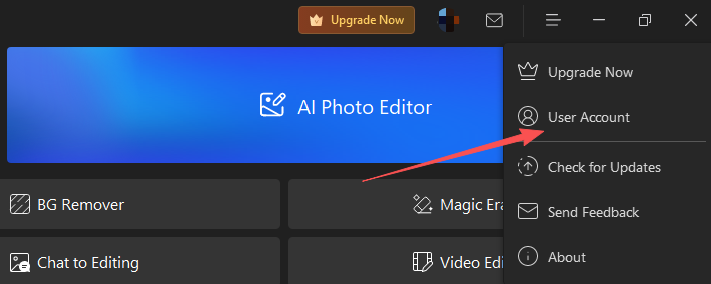
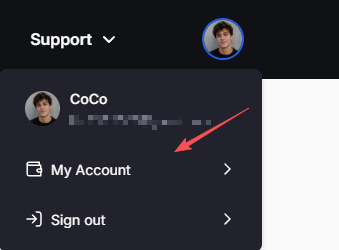
Or click your profile picture in the upper-right corner on the website navigate to Account Center.
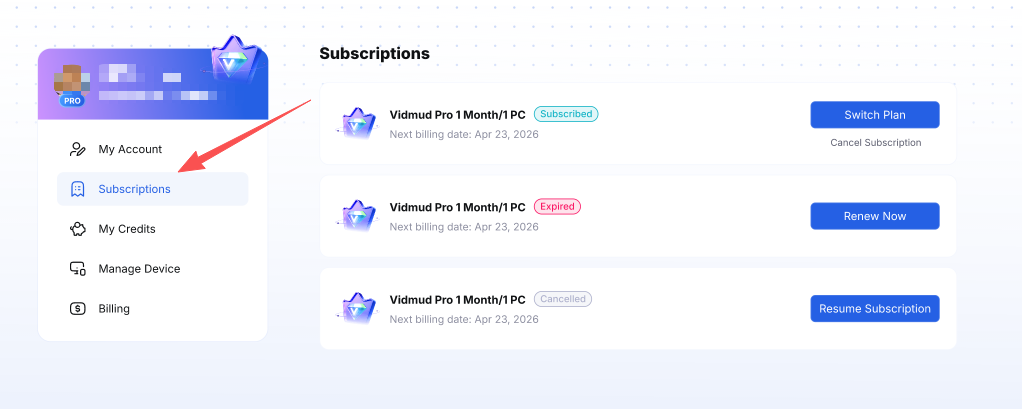
Step 3. Select [Subscription] to view your subscription details.
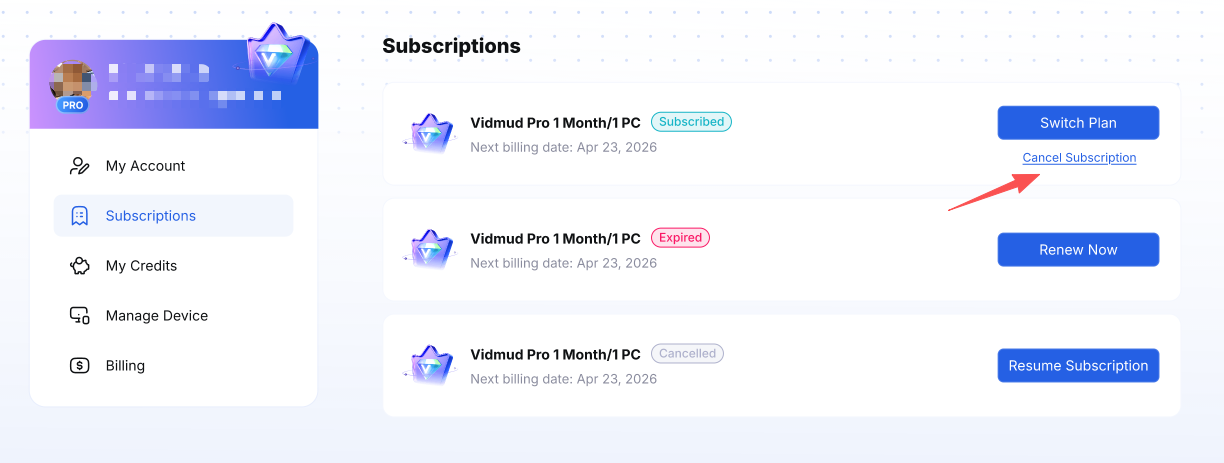
Step 4. Click [Cancel Subscription].
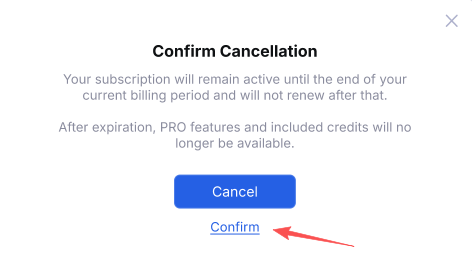
Step 5. Click [Confirm], now your subscription is canceled.
You may also submit a cancellation request by filling out the online form or by directly sending an email to: support@vidmud.com. Our customer support team will process your request as soon as possible after receiving it.
Reactivate Subscription
You have already canceled auto-renewal but now want to subscribe again? No worries - Please follow the guide below to reactivate your subscription.
Step 1. Find the subscription you have canceled and click [Resume Subscription].
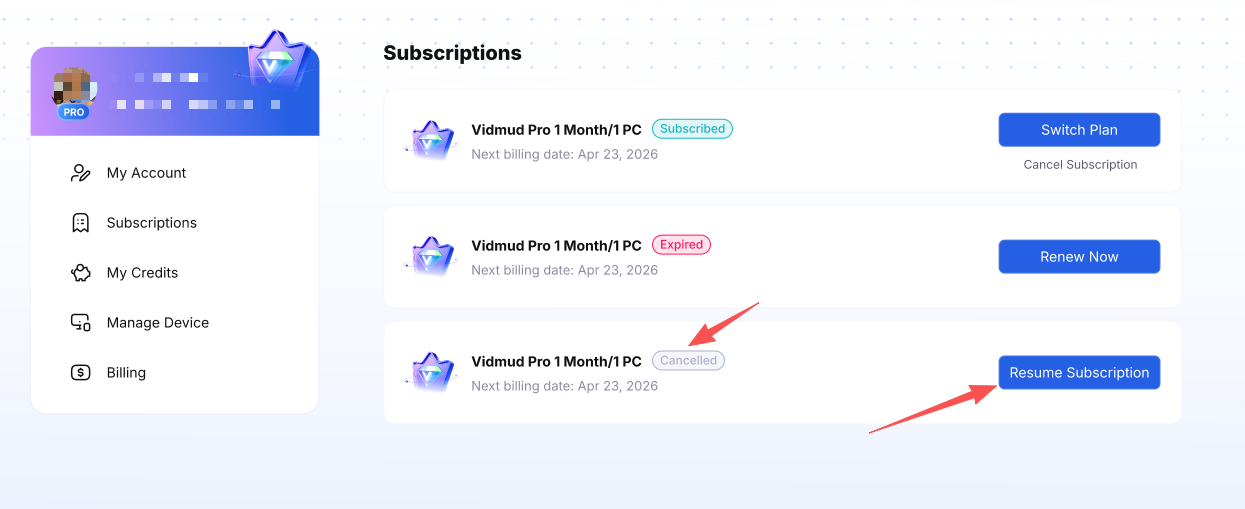
Step 2. Click [Confirm], and then your subscription has been reactivated and will automatically renew upon expiration of this period.